

What you get
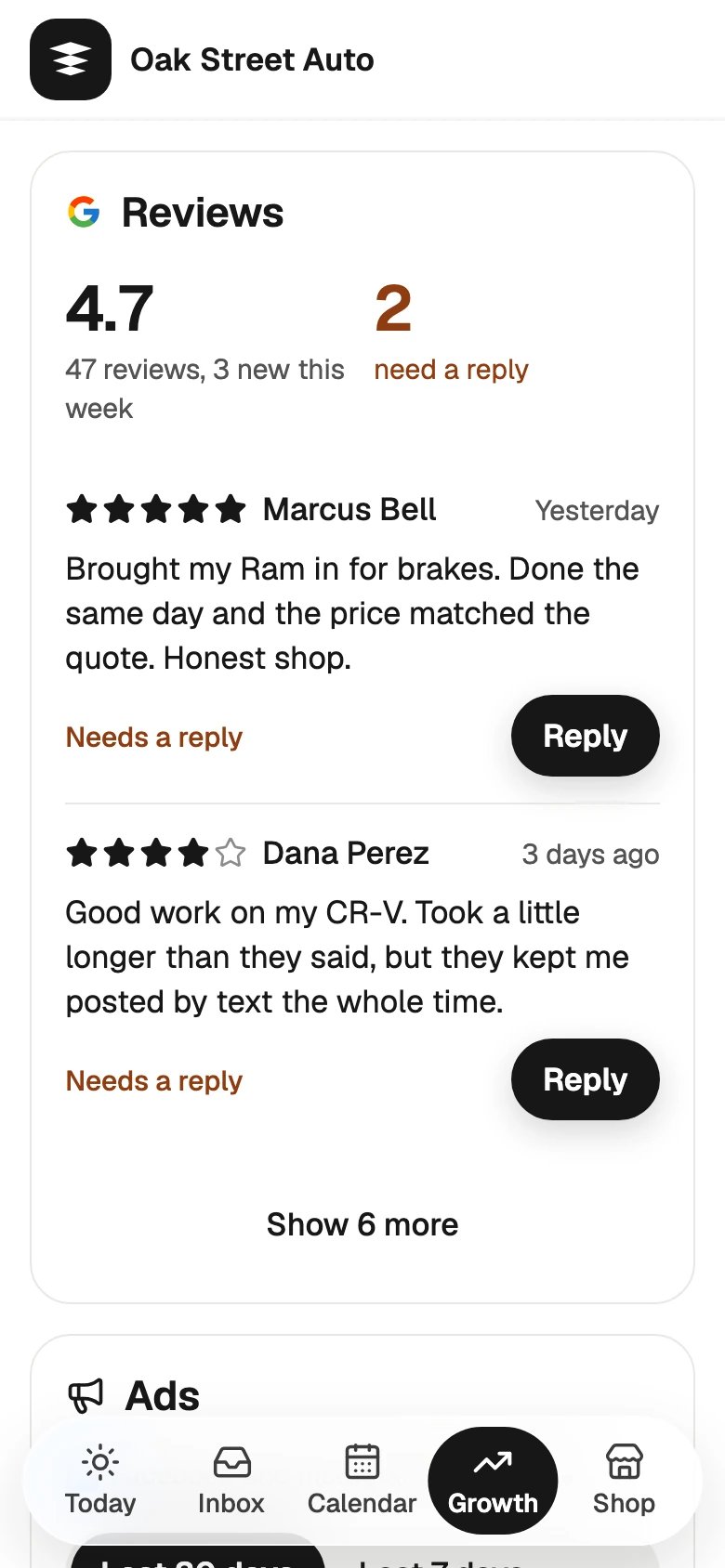
- Reviews: read every Google review and reply, on the web or on your phone. Sapt checks for new reviews every 15 minutes.
- Hours: change your opening hours and holiday hours on Google.
- Your listing: edit your category, address, phone, website, description, photos and services.
- How people find you: how often Google showed your listing, and how many people called, asked for directions or visited your website.
- Workflows: start one when a New Google review comes in, and Reply to the Google review automatically.
- Your website: your Sapt website uses your hours, address and reviews.
Before you start
You need the Google account that is an owner or manager of your Business Profile. Not sure which one? On Google, check who has access to your profile.Connect Google Business Profile
- On the web
- On your phone
1
Open Google in Sapt
In the sidebar, click Performance, then Google. You can also go to Project Settings, Connected apps and click Connect on Google Business Profile.
2
Click Connect with Google
On the Connected apps page, the button says Connect. A Google window opens.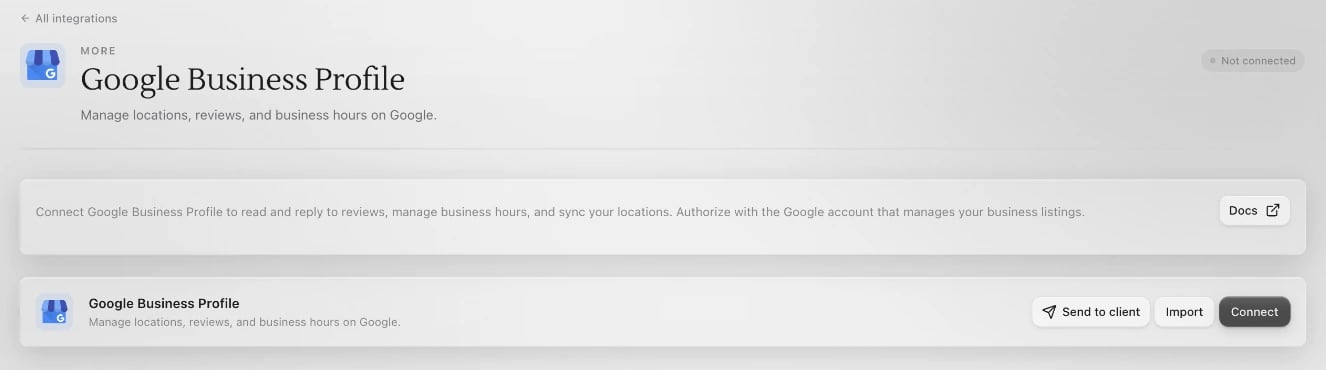
3
Choose the account that manages your listing
Pick the Google account, then allow what Google asks:
- Manage your Business Profile on Google, so Sapt can read reviews, post your replies and edit your listing.
- Your name and email address, so Sapt knows which account is connected.
Where to use it
- Reviews: on the web, Performance, Google, Reviews. On your phone, Growth.
- Hours and listing: on the web, Google, Profile. On your phone, Shop, Front desk, Google hours.
- How people find you: Google, Search.
- Weekly review digest: Google, Connections, Create digest workflow.
What Sapt does and does not do
- Replies you send post on Google, in public, as your business.
- Changes to your hours or listing go to Google. They can take a few minutes to show.
- Sapt changes your listing or posts a reply only when someone on your team does it, or a workflow you turned on does it.
If something looks wrong
- The tile says Needs setup, or your phone says Google did not connect. The account you picked doesn’t manage a listing, or you didn’t allow access. Connect again with the account that manages your listing, and allow everything.
- A new location is missing. On the Google Business Profile page, click Refresh accounts.
Disconnect
On the web, open Google, click Connections, and click Disconnect on Google Business Profile. Your synced locations are removed from Sapt. Your listing on Google stays as it is, and you can connect again any time.Keep going

Google Analytics and Search Console
See what people search on Google to find you.
Ready-made workflows
Ask for reviews and answer new ones.