

What you get
- A Stripe page in Sapt with Overview, Customers, Subscriptions, Invoices, Discounts & products and Activity.
- Money in for the period, your top customers and recent payments, on Overview.
- Work you can do from Sapt: New invoice, New subscription, New product and New discount. You can also void an invoice, cancel a subscription and archive a product.
- Payments and invoices Stripe sends land on the matching contact in your CRM. If the payer is new, Sapt adds them.
- Workflows that start on a payment. Pick the Stripe payment or invoice trigger and choose Invoice paid, Payment succeeded, Checkout completed, Invoice payment failed, Invoice voided or Invoice marked uncollectible.
- Weekly workflows per subscriber, with the Stripe: fan out subscription cycles step and the Stripe subscription week trigger.
Before you start
- Access to your Stripe Dashboard, where you can make API keys and webhooks.
- This is your own Stripe account. It has nothing to do with how you pay Sapt.
Connect Stripe
1
Open Stripe in Sapt
In Sapt, open Project Settings and then Connected apps. Find Stripe under Money and click Connect.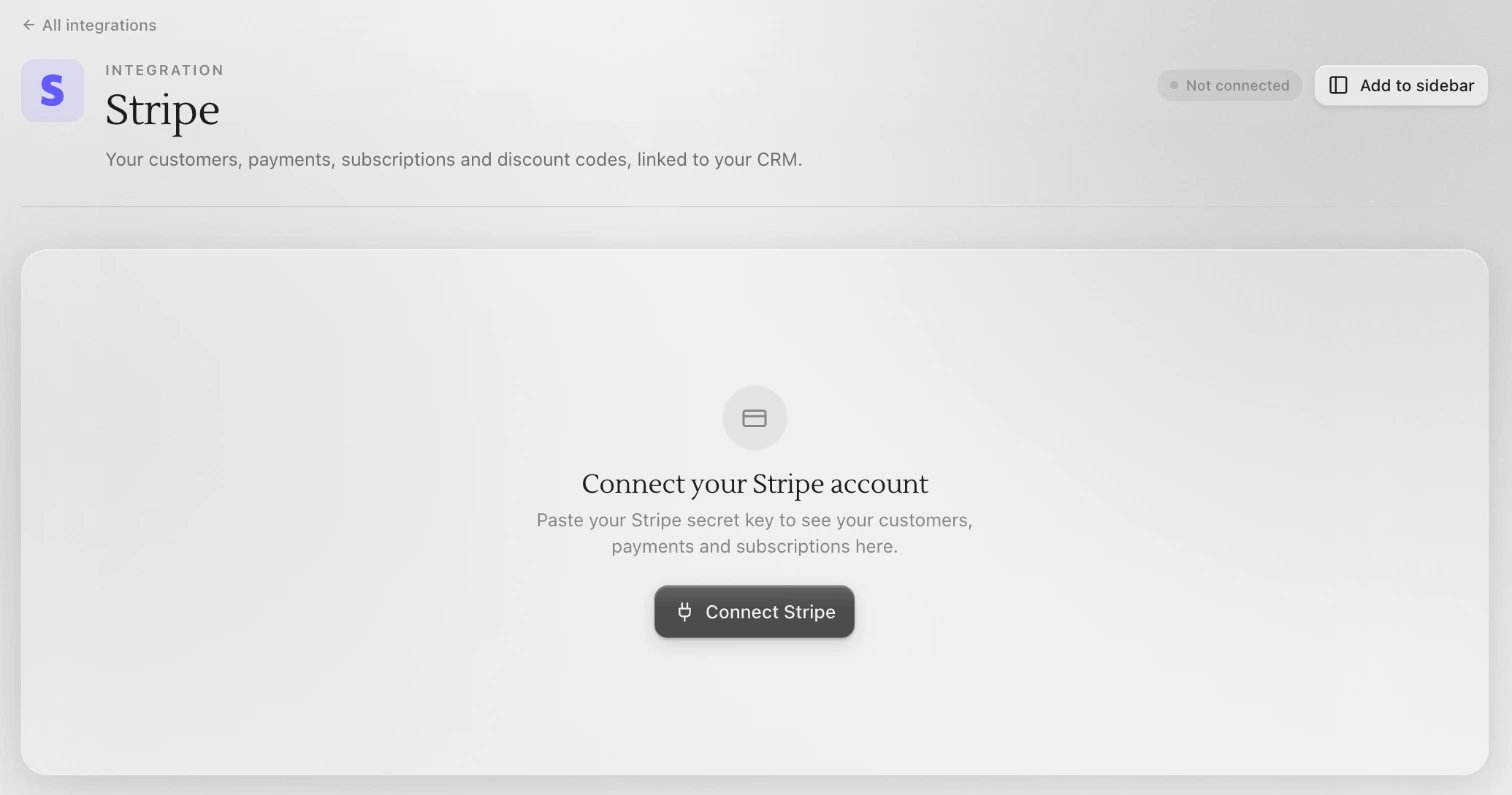
2
Copy the webhook address
Under Connect your Stripe account, click Connect Stripe. At the bottom of the Connect Stripe box, under Webhook URL (for Stripe’s dashboard), copy the address. You paste it into Stripe in a moment.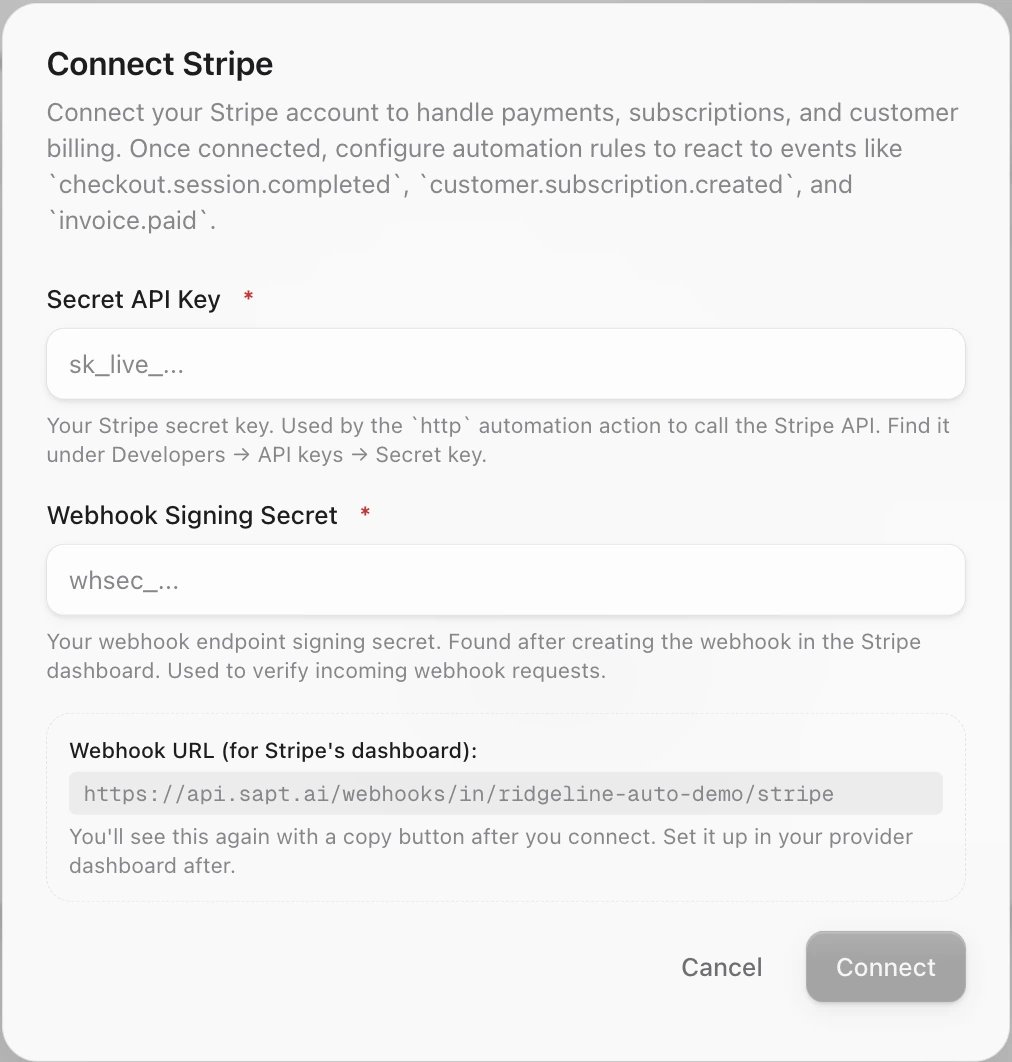
3
Make a key in Stripe
Stripe recommends a restricted key, which can do only what you allow. Sapt works with one. On Stripe’s API keys page, click Create restricted key and name it Sapt.Set Read on what you want to see in Sapt: your balance, customers, payments (charges), Checkout Sessions, invoices, subscriptions, products and prices, coupons and promotion codes. Set Write on what you want to do from Sapt, like customers, invoices, subscriptions, products, prices, coupons and promotion codes. Then click Create key and copy it. Stripe shows it only once.Stripe walks through this in its restricted keys guide.
Sapt reads your balance every time you open the Stripe page. If the key cannot read it, the page says Couldn’t reach Stripe. A full secret key (it starts with
sk_live_) also works, but it can do anything in your Stripe account.4
Add the webhook in Stripe
Open the Webhooks tab in Stripe Workbench and click Create an event destination. Then:
- Select Your account.
- For the payload, choose Snapshot, not Thin. Sapt reads the full event.
- Select these events:
invoice.paidpayment_intent.succeededcheckout.session.completedinvoice.payment_failedinvoice.voidedinvoice.marked_uncollectiblecustomer.subscription.createdcustomer.subscription.updatedcustomer.subscription.deleted
- Select Continue, then Webhook endpoint, then Continue.
- Paste the Sapt address into Endpoint URL and save the destination.
whsec_. Stripe’s steps are in its webhooks guide.5
Paste both into Sapt
In the Connect Stripe box, paste the key into Secret API Key and the signing secret into Webhook Signing Secret. Click Connect.Sapt shows the webhook address again with a copy button. You already added it, so click Done.
6
Check that events arrive
Open the Activity view. The line at the top says when Stripe’s last event arrived, and What Stripe sent lists each event with its customer and amount. It stays empty until Stripe sends the first one.If you used test keys, the page shows Test mode.
What Sapt does and does not do
- Sapt reads from Stripe when you open the Stripe page.
- Sapt changes something in Stripe only when you do it from Sapt, or when a workflow step you added does it.
- Connecting does not make the webhook in Stripe. You add it yourself. Until you do, Stripe workflows never start and Activity says No events received yet.
- Activity hides routine events by default. Turn on Show routine events to see everything.
Disconnect
The Stripe page has no Disconnect button yet. To stop Sapt from using your Stripe account:- On Stripe’s API keys page, open the … menu next to the Sapt key and choose Expire key.
- On Stripe’s Webhooks tab, delete the Sapt event destination.
Keep going
Workflows
Start a workflow when a payment comes in.
Contacts
See each payer’s payments on their contact.
All integrations
See what else you can connect.