

What you get
- Import from Drive: bring photos, videos and documents into Content, Files & photos, to use in your content.
- Google Sheets in workflows: the Add row to Google Sheets step adds a row to a sheet you choose each time a workflow runs.
- Only what you pick: Sapt can open only the files you choose. It can’t see the rest of your Drive.
Before you start
- A Google account with the files you want.
- The first time, someone with a Sapt role that can manage integrations connects Drive. Otherwise Sapt says A project admin needs to connect Google Drive first.
Connect Google Drive
1
Open Files & photos
Click Content, then Files & photos, then From Google Drive. You can also go to Project Settings, Connected apps and click Connect on Google Drive.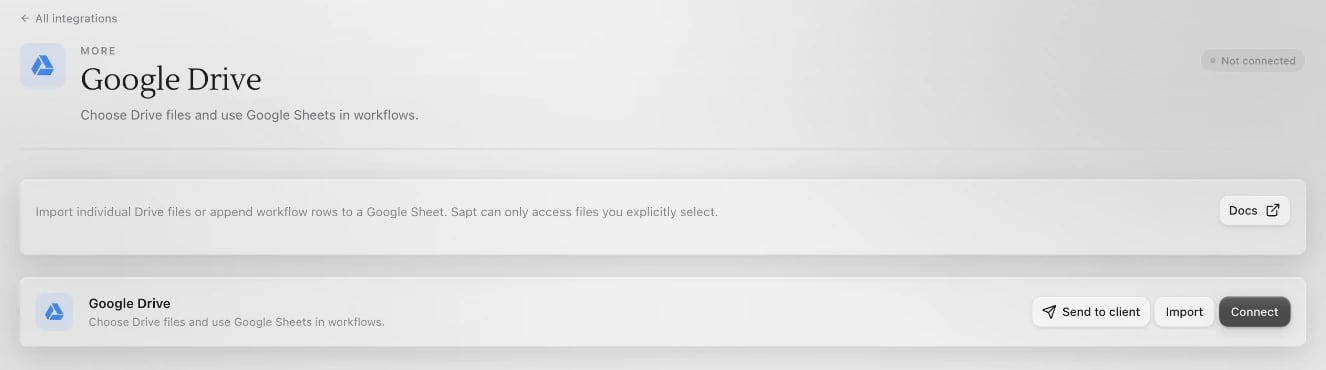
2
Allow access
A Google window opens. Pick your account and allow what Google asks:
- See, edit, create, and delete only the specific Google Drive files you use with this app. That means only files you choose in Sapt.
- Your email address, so Sapt knows which account is connected.
3
Pick your files
Google’s file picker opens. Choose one or more files. Sapt imports them and says, for example, 3 files imported from Google Drive.
Add a row to a Google Sheet
1
Get the sheet ready
In Google Sheets, put your column headers in the first row, like Name, Phone and Car.
2
Add the step
In a workflow, add the Add row to Google Sheets step. Click Choose sheet… and pick the spreadsheet.
3
Fill in the columns
Type the Sheet tab name, like Sheet1. Under Columns, give each column the same header as your sheet, in the same order, and pick its Value. Click Add column for more.
What Sapt does and does not do
- It opens only files you pick in Google’s picker.
- It copies imported files into Sapt. The files in Drive don’t change.
- In the sheet you chose, it only adds new rows.
Disconnect
In Project Settings, Connected apps, click Configure on Google Drive. Open the … menu and click Disconnect. Files you already imported stay in Sapt. Workflows with an Add row to Google Sheets step can’t add rows until you connect again.Keep going
Files and photos
Organize what you import.
Workflows
Build the workflow that fills your sheet.