

What you get
- Your website on Google: how often Google showed your site, how many people visited from it, and your average spot in results.
- Which pages Google has: and which ones are missing.
- Your sitemap: send it to Google with one click.
Sapt also asks for read-only Google Analytics (GA4) access in the same step, but no Sapt screen shows GA4 reports yet.
Before you start
Is your website hosted on Sapt, on your own domain? Then you can skip this page. Sapt adds your site to Search Console and sends your sitemap for you. A site still on its.sapt.ai address is not added.
Otherwise, you need a Google account with access to your site in Search Console. See Google’s permission levels. If your site isn’t in Search Console yet, add it there first.
Connect Google Search
1
Open Search in Sapt
Click Performance, then Google, then Search. You can also go to Project Settings, Connected apps and click Connect on Google Analytics.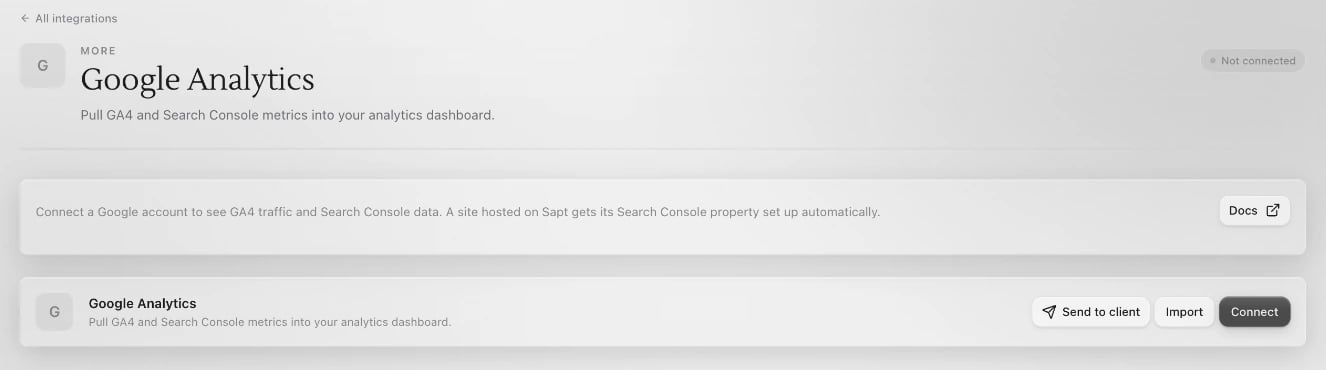
2
Click Connect Google
On the Google Analytics page in Connected apps, the button says Connect. A Google window opens.
3
Choose your account and allow access
Pick the Google account that has your site, then allow what Google asks:
- See and download your Google Analytics data. Sapt only reads it.
- View and manage Search Console data for your verified sites, so Sapt can read your numbers and send your sitemap.
- Manage your new site verifications with Google, so Sapt can prove a site it hosts is yours.
- Your email address, so Sapt knows which account is connected.
4
Choose your site
If Sapt doesn’t host your website, it asks which site to use. Click Choose site, pick it under Choose a site and click Use.
What Sapt does and does not do
- It reads your search numbers and the pages Google has.
- For a site it hosts, it adds the site to Search Console, proves it’s yours and sends the sitemap. While that runs, Sapt says Sapt is putting your site on Google Search. This page updates itself.
- It never changes your Google Analytics setup.
If something looks wrong
- This Google login has no sites yet. The account you connected can’t see your site. Connect with the account that can, or add your site to Search Console.
- Google needs your OK to share search numbers. You didn’t allow every permission. Click Reconnect Google and allow them all.
- Your Google login expired. Click Reconnect Google.
Disconnect
In Project Settings, Connected apps, click Configure on Google Analytics. Open the … menu and click Disconnect all. Your Search Console and Google Analytics stay as they are.Keep going

Google Business Profile
See how people find your Google listing.
Connect your domain
Put your Sapt website on your own domain.