

What you get
- A Higgsfield tab in the Choose an image and Choose a video windows, wherever Sapt asks you to pick a picture or video.
- Pick one and Sapt copies it into your project’s files, ready to use.
- It runs on the Higgsfield plan you already pay for. No API key and no second bill.
Before you start
- A Higgsfield account.
- Recent work. Higgsfield keeps generated files for about a week, so pick them soon after you make them.
- Allow pop-ups for app.sapt.ai. Higgsfield opens in a small window.
Connect Higgsfield
1
Open Higgsfield in Sapt
In Sapt, open Project Settings and then Connected apps. Find Higgsfield under Other and click Connect. On the Higgsfield page, click Connect again.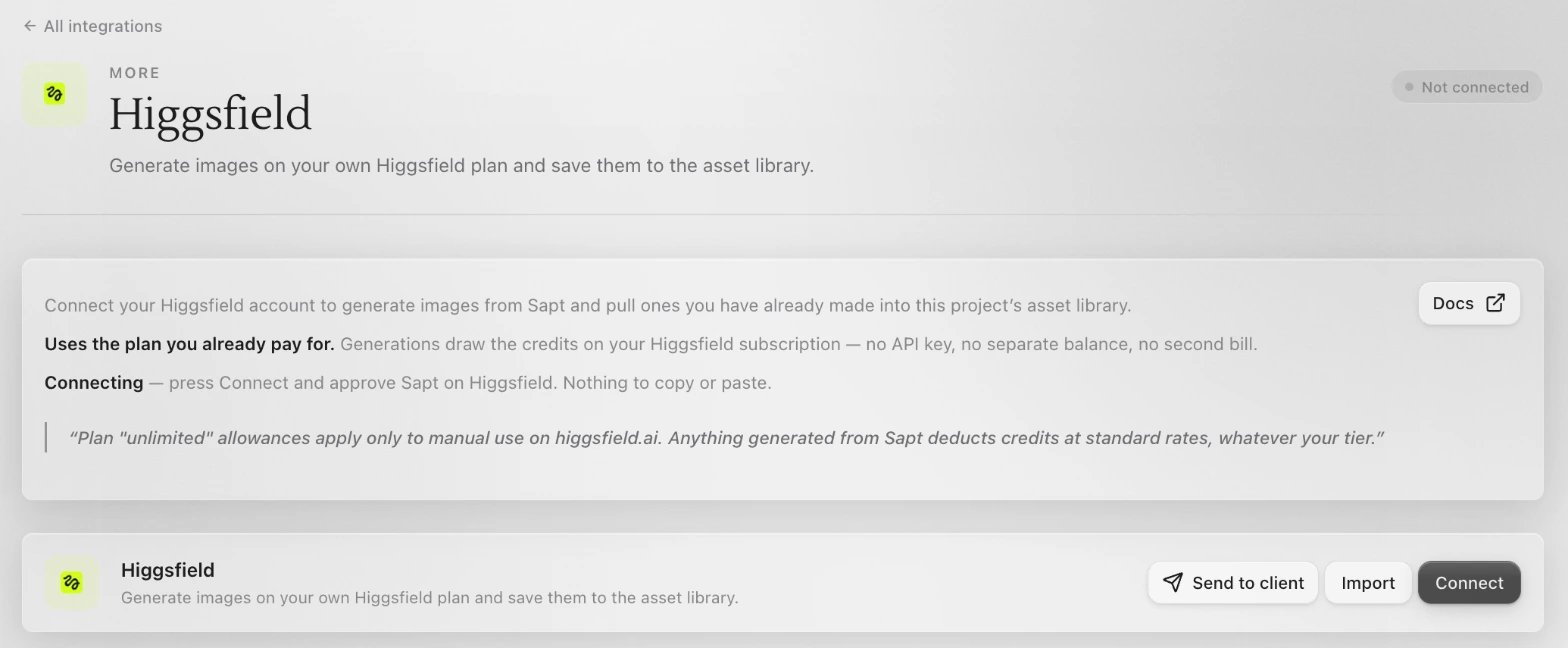
2
Approve Sapt on Higgsfield
Sign in to Higgsfield in the window that opens and approve Sapt. There is nothing to copy or paste.
3
Pick your first image
Open any image picker in Sapt, like a photo on your website. In Choose an image, open the Higgsfield tab and click a picture. Sapt says Added to your assets and selects it in Library.
What Sapt does and does not do
- Sapt copies only what you pick. The copy in Sapt stays after Higgsfield’s file expires.
- In these windows Sapt shows what you already made on Higgsfield. It does not start new generations there.
- Only teammates who can add files see the Higgsfield tab.
Disconnect
On the Higgsfield page in Sapt, open the … menu on the Higgsfield card and choose Disconnect. Files you already copied stay in Sapt.Keep going
Files and photos
Find everything you saved.
All integrations
See what else you can connect.