

1
Open Development in HubSpot
In HubSpot, open Development from the left menu. Newer HubSpot accounts replaced private apps with service keys, so click Create a service key.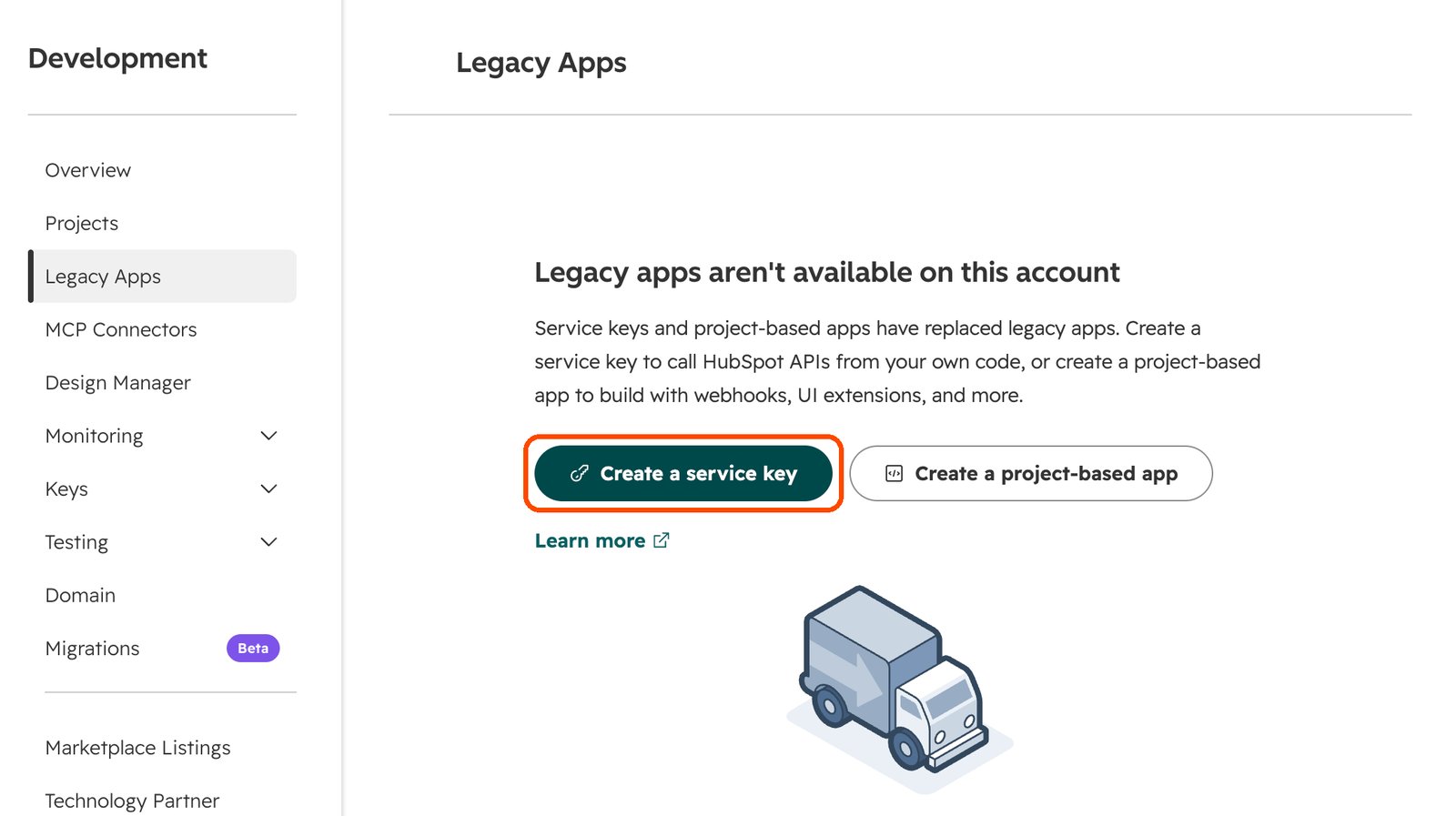
2
Go to Service Keys
If you land on a different page, open Keys, then Service Keys, and click Create service key.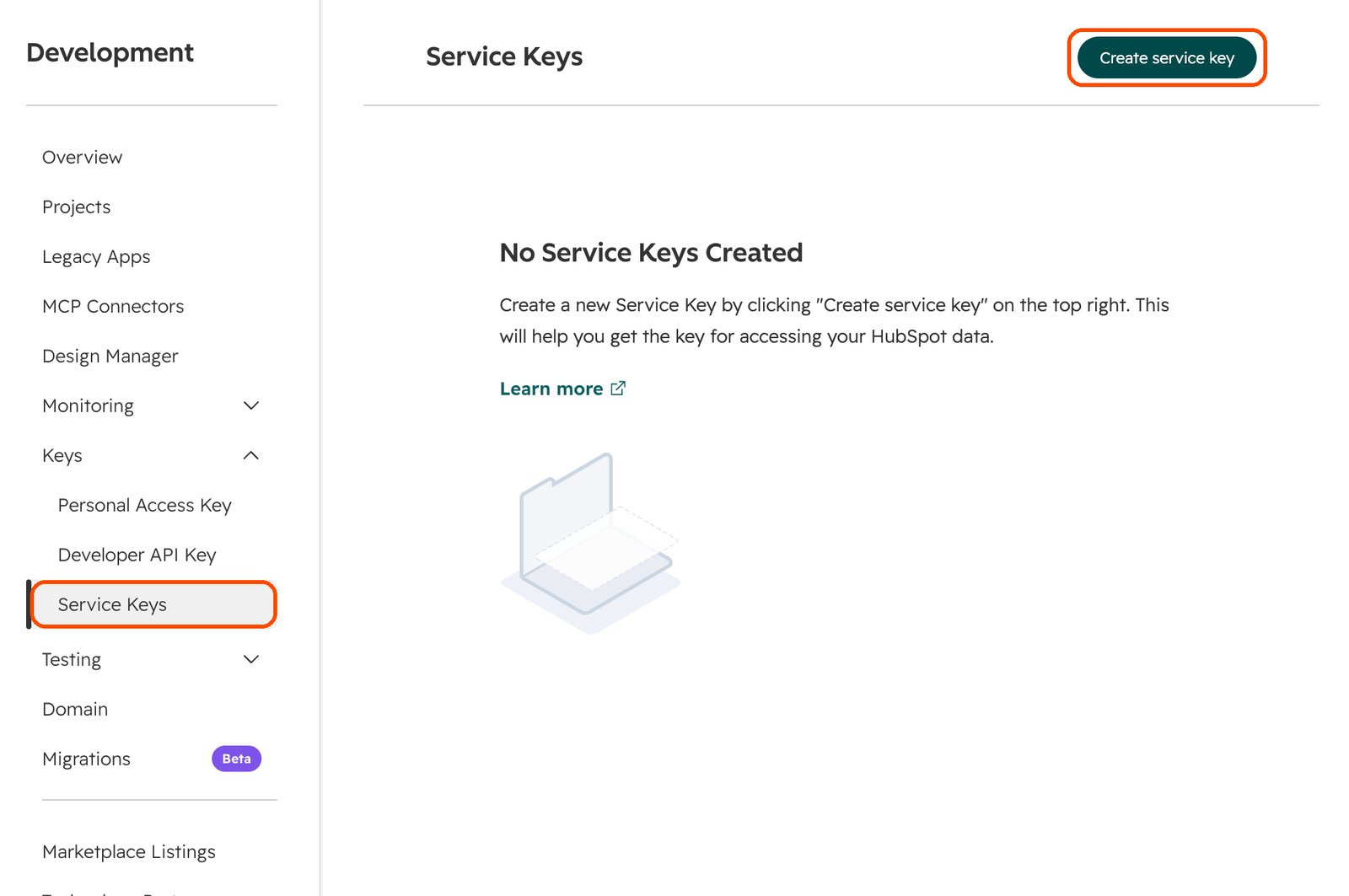
3
Name the key and add read access
Name the key Sapt. Click Add new scope and add these four, all read-only: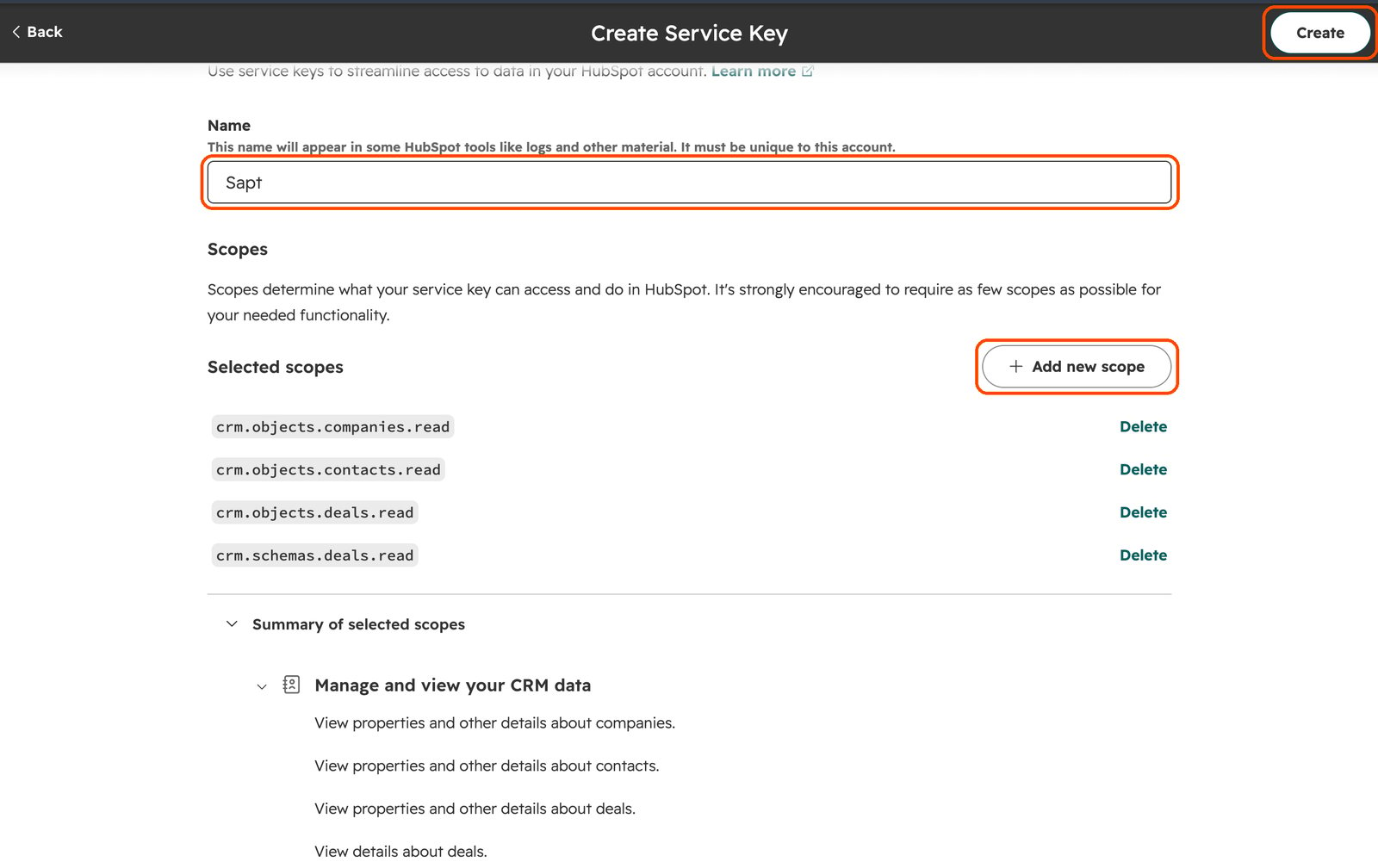
crm.objects.deals.readcrm.objects.companies.readcrm.objects.contacts.readcrm.schemas.deals.read(your pipeline and stage names)
4
Copy the key
On the key’s page, click Copy. Keep it private, like a password.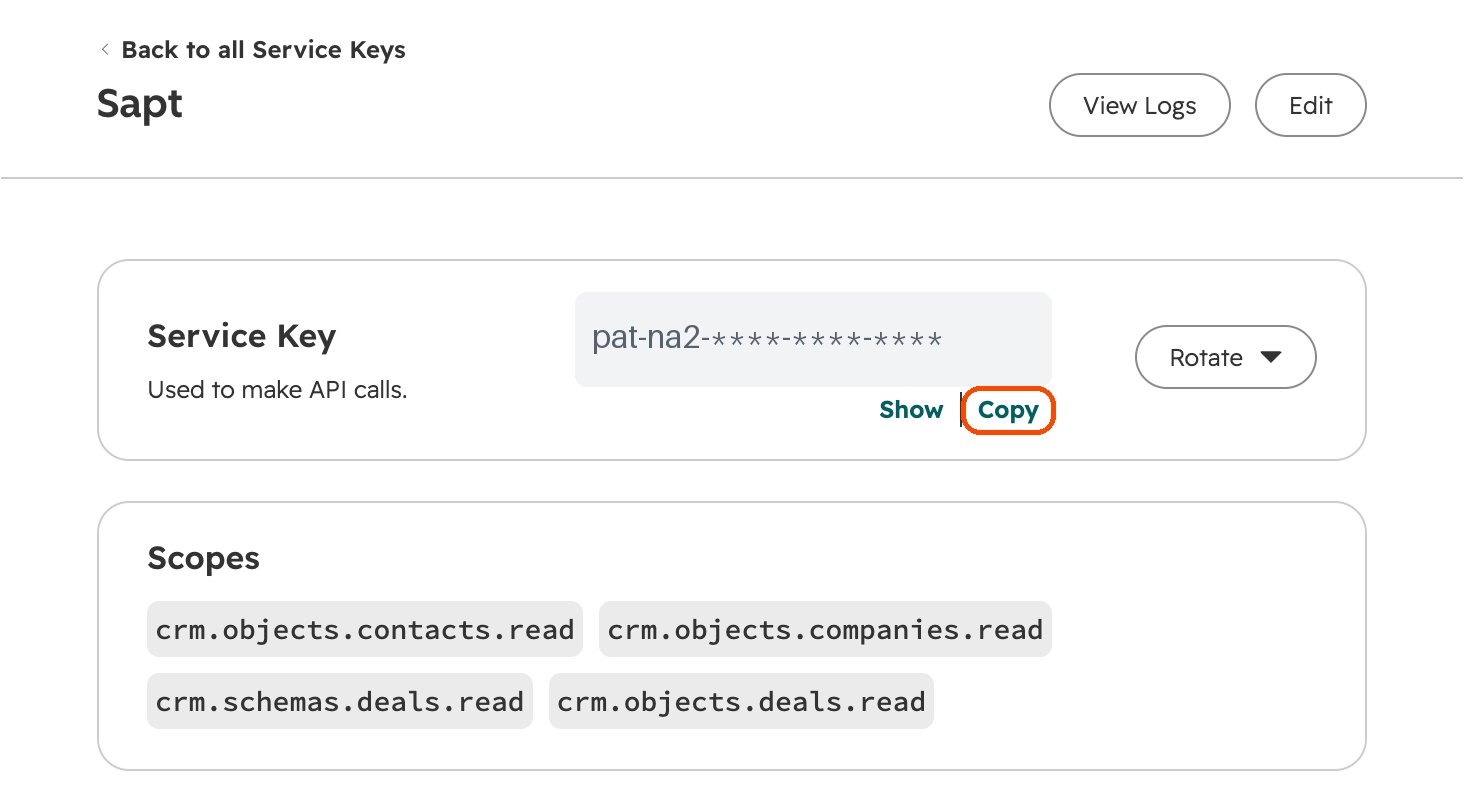
5
Paste it into Sapt
In Sapt, open Integrations and choose HubSpot. Paste the key into Service key or private app access token and click Connect. Sapt checks the key with HubSpot before saving it, so a mistyped key is caught on the spot.
What happens next
- On the first connect, Sapt brings in all of your deals and companies, each deal with its stage, amount and close date.
- After that, Sapt checks HubSpot for changes every hour.
- Bringing them in again never creates duplicates.
On an older HubSpot account you may see Private Apps instead of service keys. Go to Settings, Integrations, Private Apps, create an app with the same four read scopes, copy its access token, and paste it into Sapt the same way.