

What you get
- Answers about your business in plain words. Try asking: “What’s my brand voice?”
- Work done in Sapt from the chat: your contacts and CRM, content, workflows and posts. Reviews and business hours too, once Google Business Profile is connected.
- Your own Sapt sign-in. The assistant sees only what your Sapt account can see.
Before you start
- A Claude or ChatGPT account. ChatGPT adds Sapt through Developer mode, and what you can use there depends on your ChatGPT plan.
- The connector address, which is the same for both:
Connect Claude or ChatGPT
1
Open the Connect tab
In Sapt, open your user menu at the top right and choose Account. The Connect tab opens on Connect Sapt. Click Copy URL.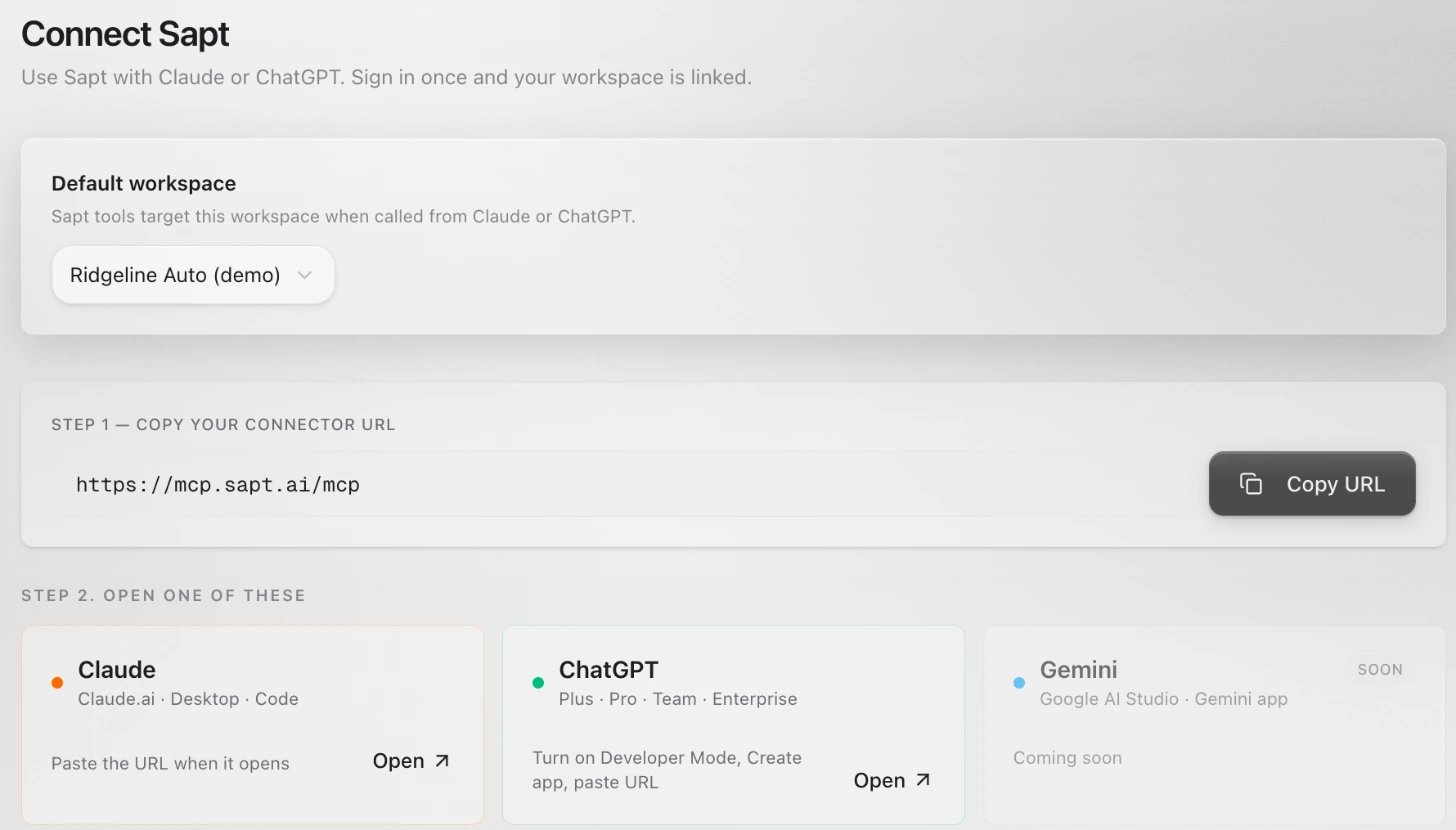
2
Follow the guide for your assistant
Click Open on the Claude or ChatGPT card. That also copies the URL. The guide further down the tab has every step for each assistant, and so does Connect Claude or ChatGPT.
3
Sign in with Sapt
When Claude or ChatGPT asks you to connect, sign in with your Sapt account.
4
Pick your workspace
If you have more than one workspace, choose one under Default workspace on the Connect tab. Sapt uses it when you call Sapt from Claude or ChatGPT.
5
Try it
Start a chat and ask: “What’s my brand voice?”
What Sapt does and does not do
- The writing comes from your Claude or ChatGPT plan. Sapt holds your data and carries out the actions.
- Sapt asks the assistant to check with you before anything goes live, like sending a message, publishing a post, changing an ad or deleting something.
- The assistant can do only what your role in Sapt allows.
Disconnect
In Sapt, open Account and the Connected Apps tab. Click Revoke next to the assistant, then Revoke Access. It signs out within a minute. To use it again, connect again from Claude or ChatGPT.Keep going
Connect Claude or ChatGPT
Every click, for both assistants.
MCP overview
What the connector can do, for developers.