

What you get
- Your Whop sign-in saved for this project. Sapt keeps it fresh and shows your Whop name on the Whop card.
Before you start
- A Whop account.
- Allow pop-ups for app.sapt.ai. Whop opens in a small window.
Connect Whop
1
Open Whop in Sapt
In Sapt, open Project Settings and then Connected apps. Find Whop under Money and click Connect. On the Whop page, click Connect again.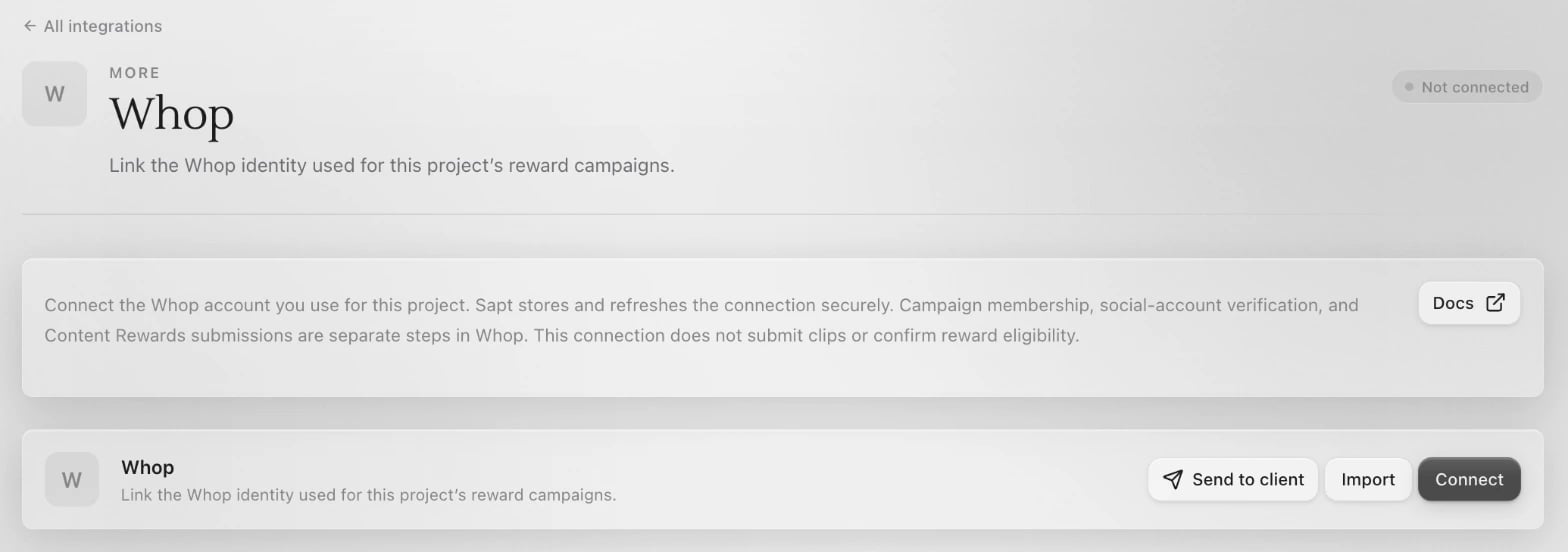
2
Approve Sapt on Whop
Sign in to Whop in the window that opens and approve Sapt.
3
Check the card
Back in Sapt, the Whop card shows Connected with your Whop name.
What Sapt does and does not do
- The connection does not submit clips or confirm that you earned a reward.
- Campaign membership, social-account checks and Content Rewards submissions are separate steps in Whop.
- To send clips to a campaign, connect Content Rewards.
Disconnect
On the Whop page in Sapt, open the … menu on the Whop card and choose Disconnect. Sapt also asks Whop to end the sign-in.Keep going
Connect Content Rewards
Find campaigns and send your clips.
All integrations
See what else you can connect.