

What you get
- The Send a Slack message workflow step. It posts to the channel you pick, with details like the customer’s name filled in.
Before you start
- A Slack workspace where you can add apps. By default any member can. If your workspace needs approval, ask a Workspace Owner. Slack’s guide.
Connect Slack
1
Open Slack in Sapt
In Sapt on the web, open Project Settings, then Connected apps. Under Other, find Slack and click Connect.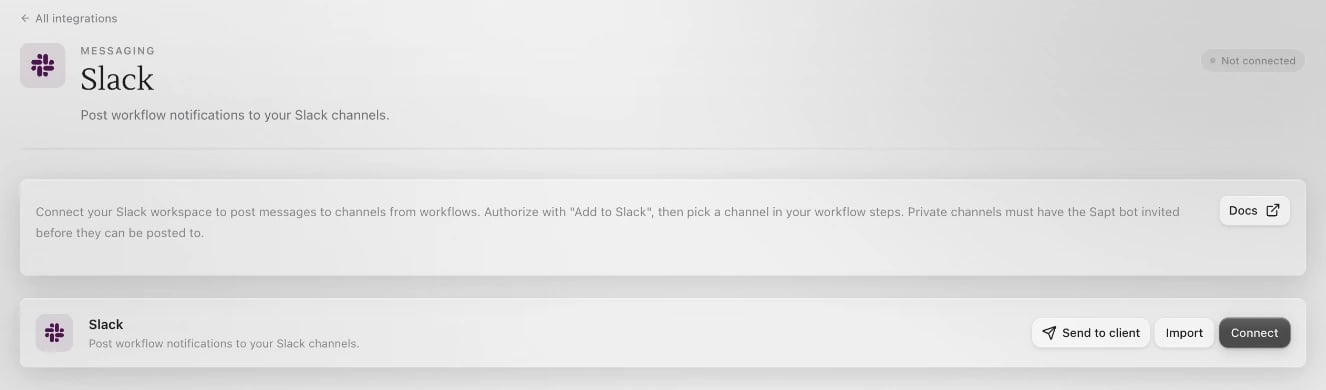
2
Allow Sapt in Slack
Click Connect on the Slack page. Slack opens in a new window. Pick your workspace and allow access.
3
Check your channels
Back in Sapt, your workspace’s channels are listed under Connected accounts.
Post from a workflow
1
Add the step
Open a workflow, click Add step and choose Send a Slack message.If Slack is not connected yet, the step says No Slack channel connected and shows only Message. Connect Slack takes you to your connected apps.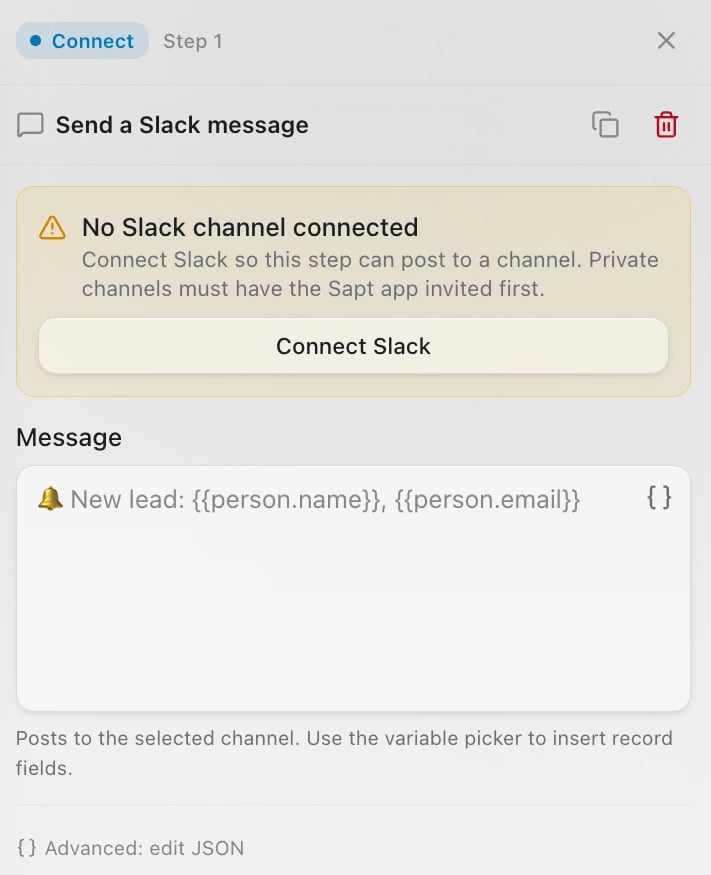
2
Pick the channel and write the message
Once Slack is connected, a Channel box appears above Message. Choose the channel. Write the Message, and use the variable picker to add details like the customer’s name. For example: “New lead: Maya Chen, (937) 555-0123”.
3
Save the workflow
Click Save changes, or Create workflow if it is new. From now on the step posts each time the workflow runs.
Private channels
Sapt can post to any public channel. For a private channel, add Sapt to it first: in the channel, type/invite @Sapt, or click the channel name and add Sapt on the Agents & apps tab. Slack’s guide. Then click Refresh accounts on the Slack page in Sapt so the channel shows up.