

What you get
- Your Close leads in Sapt as contacts, with their email, phone, and the value of their won and open deals.
- New and changed leads come in on their own every 30 minutes. The first run brings in all of them.
- Where each lead came from. Sapt reads the campaign tags and Meta click IDs on your Close leads and matches them to visits on your website.
- A Close page in Sapt with Attribution preview, Where your leads come from, People from Close, Revenue by channel and Fields in Close. The cards about your leads appear once the first leads have come in.
- Sapt fields in Close. Sapt can write its attribution onto your Close leads in fields of its own: Sapt Channel, Sapt Source, Sapt Campaign, Sapt Ad, Sapt First Touch, Sapt Journey, Sapt Confidence and Sapt Attribution Updated.
Before you start
- A Close login that has access to the organization you want to connect.
- Allow pop-ups for app.sapt.ai. Close opens in a small window.
Connect Close
1
Open Close in Sapt
In Sapt, open Project Settings and then Connected apps. Find Close CRM under Other and click Connect.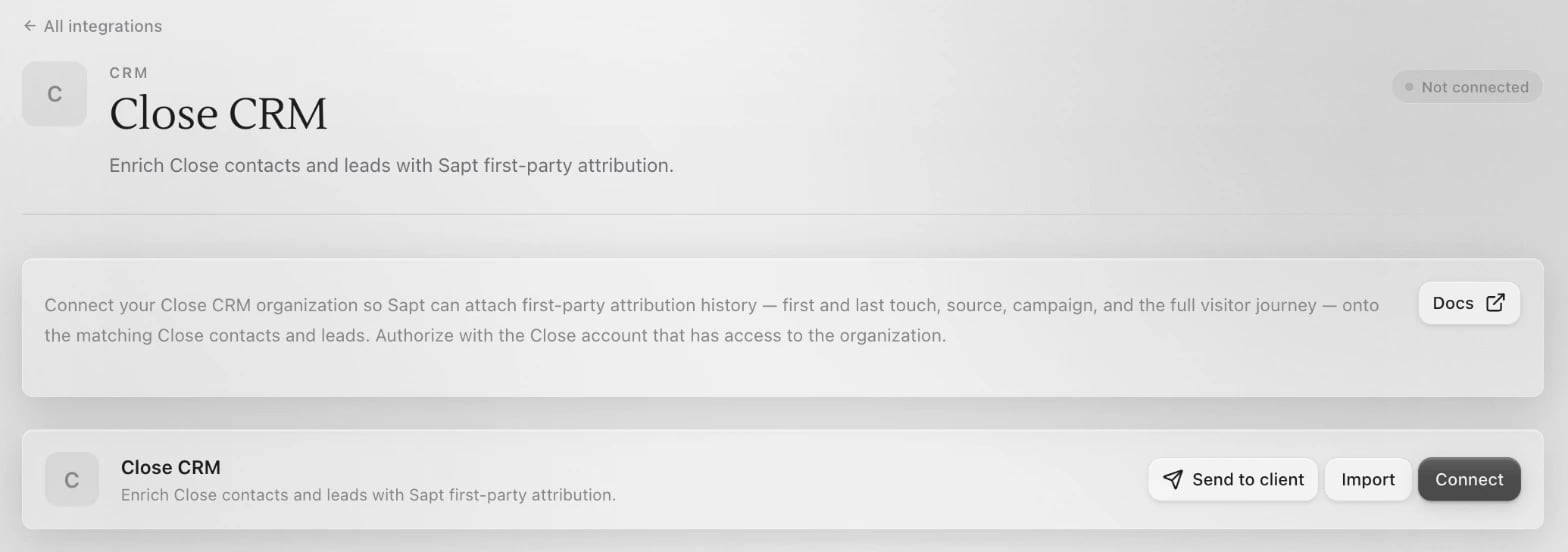
2
Click Connect
On the Close CRM page, click Connect. A Close window opens. If nothing opens and Sapt says the pop-up was blocked, allow pop-ups and try again.
3
Approve Sapt in Close
Close shows a consent screen. Pick your organization and grant access. Close explains this screen in its OAuth guide.
4
Preview your leads
Back in Sapt, the card shows Connected and the Close dashboard appears below it. Click Preview 25 recent leads to see where your latest leads came from. The preview stores nothing and writes nothing to Close.
What Sapt does and does not do
- Close gives every connected app the same full access to your organization.
- Sapt reads your leads, contacts and deals. It does not change your leads, your deals or your own fields in Close.
- The only things Sapt writes in Close are the Sapt fields listed above. It creates them if they are missing and cannot touch any other field.
- Writing those fields is not something you can start from the Close page yet. Ask the Sapt team to run it. Enriched in Close shows how many leads have them.
- Bringing leads in does not message anyone.
Disconnect
On the Close CRM page, open the … menu on the Close card and choose Disconnect. Sapt also asks Close to end its access. Leads already in Sapt stay. You can also revoke Sapt’s access from your account settings in Close.Keep going
Contacts
Find the leads Sapt brought in from Close.
All integrations
See what else you can connect.