

What you get
- Each GoHighLevel sub-account imported into its own Sapt project, or into a project you pick.
- Contacts, opportunities, conversations and notes come across.
- A count of what will come over, and about how long it takes, before you start.
- Imports run in the background, so you can close the tab and come back.
- A workflow step, Send lead to GoHighLevel, that hands a new lead to a client’s GoHighLevel.
Before you start
- A GoHighLevel login at the agency level. You authorize once for the whole agency.
- Allow pop-ups for app.sapt.ai. GoHighLevel opens in a small window.
Import your sub-accounts
1
Open GoHighLevel in Sapt
In Sapt, open Project Settings and then Connected apps. Find GoHighLevel under Your shop system and click Connect. The Migrate from GoHighLevel page opens.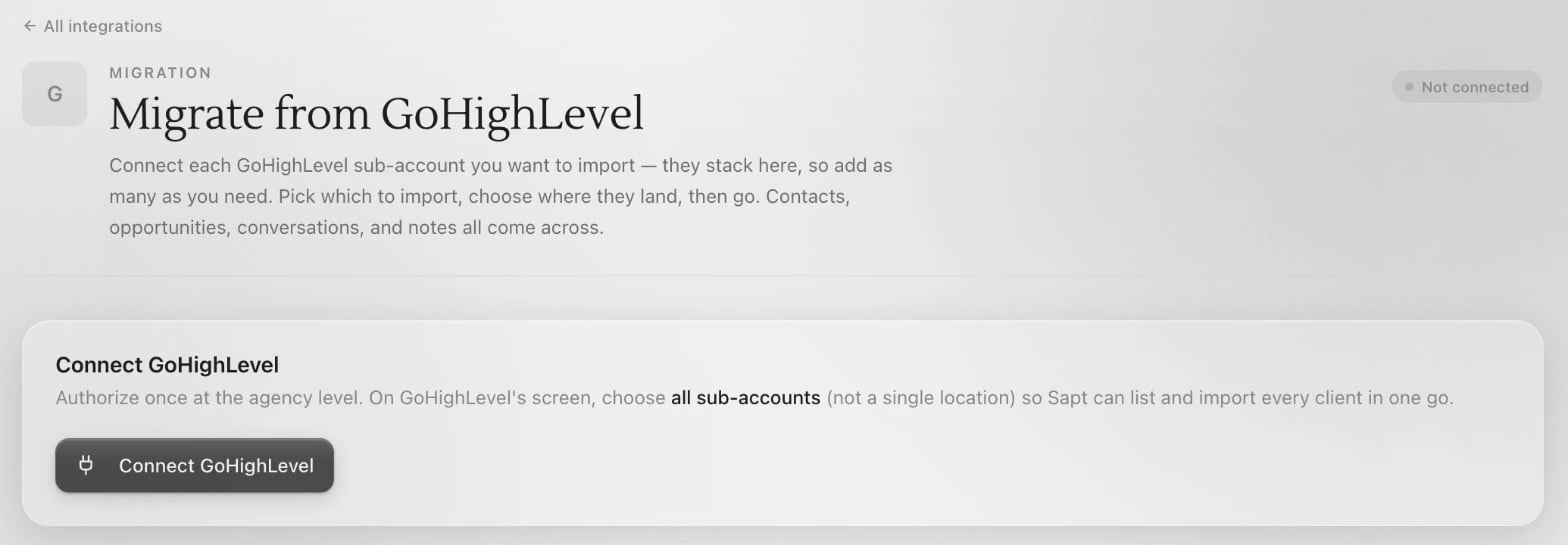
2
Connect your agency
Click Connect GoHighLevel and sign in to GoHighLevel. On GoHighLevel’s screen, choose all the sub-accounts you want to bring over, not a single location.Back in Sapt, the page lists your sub-accounts. To add more later, click Connect sub-account. New ones stack on the same page.
3
Pick where each one lands
Each sub-account has an Import destination. Choose New project, this project (shown with its name), or another project you own.Under each sub-account, Sapt shows how many contacts, opportunities and conversations it found, and about how many minutes the import takes.
4
Start the import
Click Start import on one sub-account, or Import all for every one. Sapt shows each part as it comes in: contacts, opportunities, conversations, then notes.If an import fails, click Retry. To stop one, click Cancel.
Send leads to a client’s GoHighLevel
Use this when a client still works in GoHighLevel and wants your leads there. You do not need their GoHighLevel login.1
Get the URL from your client
In the client’s GoHighLevel, they open a workflow and choose the Inbound Webhook trigger. GoHighLevel shows a URL. They copy it and send it to you. GoHighLevel explains this in its Inbound Webhook guide.
2
Add the step in Sapt
In your Sapt workflow, add the Send lead to GoHighLevel step. Give it a Destination name, like the client’s shop name, so you can tell clients apart. Paste the URL into Inbound webhook URL and click Save.Sapt stores the URL encrypted and never shows it again. Anyone with that URL can write into the client’s CRM.
3
Choose what to send
Name, email, phone, source, campaign and first-touch attribution go over on their own. To send more, click Add field under Extra fields (optional).In their GoHighLevel workflow, the client maps these fields with a Create/Update Contact step.
4
Check what was sent
The Leads sent out card on the GoHighLevel page lists every lead this project sent, newest first. If any failed, click Show failed to see them.
What Sapt does and does not do
- Sapt asks GoHighLevel for read-only access to your sub-accounts, contacts, opportunities and conversations, plus the access it needs to open each sub-account.
- Sapt never changes or deletes anything in GoHighLevel.
- Importing does not message anyone.
- Importing the same sub-account again updates what came over before. It does not make duplicates.
- A new project made from a sub-account sits under your agency’s project. It shares that project’s billing and credits, and your agency’s owner owns it.
Disconnect
On the Migrate from GoHighLevel page, open the … menu and choose Disconnect GoHighLevel, then Disconnect. Records and projects you already imported stay. You can reconnect any time to import more.Keep going
Workflows
Build the workflow that sends leads on.
Contacts
Find the people you imported.
All integrations
See what else you can connect.